Monday, February 19, 2018

T-SQL Tuesday #99 - A Passion for Sewing

This post is part of T-SQL Tuesday, a monthly blog party on the second Tuesday of each month which was started back in 2009. This month's host is Aaron Bertrand (B|T), who presented us with a choice between two possible topics - something non-technical you're passionate about or t-SQL bad habits. I know I'm a week late, but I didn't see the topic notification until today, so I thought I'd create a post anyway because I needed to resurrect my blog and this post was a good excuse for reviving it.
Honor Harrington

My passion outside of the SQL server community
is sewing. Much of my earlier sewing was costumes for myself which I'd wear to Science Fiction, Anime, and Steampunk conventions. Over the years, I've entered - and won - numerous costuming awards at the conventions for my creations.
Katamari!
Sesshoumaru

I soon realized that the reason I preferred wearing costumes wasn't simply because they were unusual garments but because they fit much better than the clothing I could purchase at stores. This led me
Neo and Trinity
down the road of making nearly every garment I have in my closet. I've made some shirts for my husband, sewn curtains for the house, recovered the sofa cushions, made pillows, sewn purses and totes, and made quilts.
Pumpkin Scissors
SQL Cruise formal dress


I also collect antique and modern sewing machines. Currently I have 15 machines, including a 15-needle embroidery machine. Sewing is rather addictive - once you find out how easy it is, you can let your creativity fly and make anything you desire.
Redline 1501
Singer 201
Willcox & Gibbs

Wednesday, May 31, 2017

Unblocking blocked files

I recently stumbled across a somewhat frustrating feature of Windows 10. With the intent of protecting users from viruses and other malware, any file you download from another computer is by default 'blocked'. The standard way to unblock a file is to right-click on the file you downloaded and check the box next to "Unblock".


This method works great for individual files that you download. However, when a coworker sent me a zip file containing a multi-project Visual Studio Solution via Skype, I discovered that it would extract fewer than a third of the files from the zip file. The extractor would refuse to extract any of the Powershell scripts, BAT files or EXE files contained within the zip file. Since the zip file contained over 1000 files, unblocking them manually would be a trying experience. I needed a neat solution to iterate through all files in the zip and unblock them all.

Powershell came to the rescue. Simply start Powershell as Administrator and enter the following command:

get-childitem "C:\FullFilePathName" -recurse | unblock-file

where C:\FullFilePathName is the full file path name for the zip file you want to unblock.

After running the above command, I was able to extract all of the files and run the Visual Studio solution without issues.

PS: please only use this solution when you know that you can trust the source of the files. 

Friday, June 24, 2016

Power BI: Custom Visuals - Hierarchy Slicer

I've been playing with PowerBI recently and have discovered their Gallery of Custom Visuals. I decided to try a few to see what they do and determine whether they'd be useful in future PowerBI projects.

Previously, I tested the "Meme generator" (Note: this visualization has been removed temporarily from the PowerBI website, but should reappear shortly). This time, I've chosen one that I hope to be useful to PowerBI users.

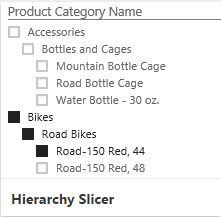
The Hierarchy Slicer is available from the PowerBI Gallery of Custom Visuals. Click on its icon to open up the Description and Download dialog. This dialog also offers the option to download a sample PowerBI file that demonstrates the use of the visual.


Testing

After examining the sample file, I decided to experiment with the new visual on my own.

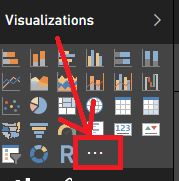
As with all custom visuals, when you open a new PowerBI report, the custom visual is not automatically available in the visuals list. To make it available you must first import it into the Visualizations bar by clicking on the " . . . " icon.

PowerBI will pop up a warning that you're attempting to load a custom visual and that you should only open it if you trust its author and source.
 Click on Import to open a dialog to browse for the custom visual you just downloaded. It should be named, "HierarchySlicer.0.6.0.pbiviz" (or similar - they may have updated it since I downloaded it) and it should be located in the directory where you normally download files (unless you already moved it to another location).

After you select the custom visual file, PowerBI should pop up a message stating "The visual was successfully imported into this report."  You can now use it in the report you currently have open.

The new custom Visual will be between the last standard Visual and the ". . ." symbol, as highlighted in yellow, below.
Please keep in mind that for every report where you wish to use a custom visual, it will have to be imported into the current report because PowerBI only keeps the custom visuals linked in the individual reports and not in the application itself. 

For my first experiment with the Hierarchy Slicer, I used the Foodmart.mdb as the data source. I defined a hierarchy in the product_class table (product_family, product_department, product_category, product_subcategory), and set up a report for "Store sales by product hierarchy".

I then added the Hierarchy Slicer to my report and selected the Product Hierarchy for the "fields"

I could then click on various levels of data and observe the filtering of the products change as I made different selections. 

Observations

The Good

  • Easy to use
  • Works great for small hierarchies 
  • Can configure either as "single select" or "multi-select"

The Bad

  • The formatting option to switch the selection from single select to multi-select disappears after the first time the data is filtered, so choose wisely.
  • The hierarchy levels cannot be collapsed, so when working with Date hierarchies, be sure to remove levels below Month from the Hierarchy Slicer otherwise finding dates in the middle of the hierarchy (such as a date 2 years from earliest and 3 years from latest dates) will be extremely challenging. The slicer will also produce an error when loading more than 5 years of dates.

Conclusion

While the Hierarchy slicer is an excellent concept, because it lacks the ability to collapse the hierarchies, I think I'd rather use multiple instances of the standard "Slicer" visual to handle the filtering of the lower level hierarchy choices.


Deep Dives, Best Practices, and What's Coming in Microsoft Fabric - FabCon 2026 - Part 2

  FabCon 2026 — Recap Part 2 Deep Dives, Best Practices, and What's Coming in Microsoft Fabric My notes from Fabcon sessions covering De...