Sunday, November 24, 2024

How to Turn Off Smart Charging

After a recent update, I discovered that my battery was down to 80% while plugged in, which I hadn't expected to see. I also noticed that the "Battery charging" symbol had changed: 
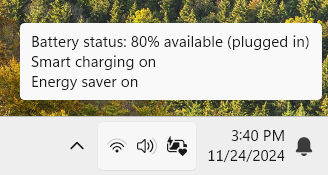

 When I hovered over the battery symbol, I noticed that the icon was a little different from normal - it had a little heart on the bottom right side. The Battery Status popup provided some hints - "Smart charging on" and "energy saver on". Since I was planning to take my computer with me to a restaurant and run it on battery power, I wanted the battery up at 100% before unplugging so that I'd be assured that the battery would last long enough for the excursion. 

I did a quick search on "Smart Charging," and according to the articles I read, I simply needed to go to System settings > Power & Battery and the option to turn off Smart Charging would be listed just below "Energy Saver".

It was NOT there:

Seriously? 

Who moved the setting? That's where all the articles say it's located. If this is a setting that's desirable, then it should be easily accessible when clicking on the battery status indicator so that when users know that their computer will be plugged in for a long time, they can toggle it "on", and when they know they're going to need full battery power, they can turn it "off" to ensure that the battery will have enough charge for their needs. 

After some additional searching, I discovered that the setting has been moved to the machine manufacturer's settings application. My current computer is a Samsung, so I located the "Samsung Settings" > Battery and Performance. The Battery Protection item was first on the list, so I toggled it off so my machine could be fully charged for my adventure.


Hopefully, this helps someone else who's desperate to get a full battery charge prior to a big winter storm in which they may lose power for a while and would prefer a full charge rather than an anemic 80% charge.

Thursday, October 6, 2022

Resoved: Error Creating Storage Event Trigger in Azure Synapse

My client receives external files from a vendor and wants to ingest them into the Data Lake using the integration pipelines in Synapse (Synapse's version of Azure Data Factory). Since the exact time the vendor sends the files can vary greatly day-to-day, he requested that I create a Storage Event Trigger.

I quickly set up the trigger:


Set Type to "Storage events", then select the correct storage account and container from the list associated to the current Azure Subscription. Use the blob path begins with setting to filter on the correct folder where the files land and use the blob path ends with setting to filter the file types (and perhaps file names if it's relatively consistent) to ensure that only the right blobs invoke the trigger. Finally, set Event to "Blob created".

Click Continue to go to the next page.

There will be a warning, "Make sure you have specific filters. Configuring filters that are too broad can match a large number of files created/deleted and may significantly impact your cost." which reminds you to check that the filters on the previous page actually return only the desired set of files. Be sure that you have at least one qualifying file in the folder and that the Data Preview can find it. If not, go back to previous page and adjust the the blob path begins with setting and the blob path ends with setting to correct the filtering. 

Click Continue to go to the next page.

This final page asks for the pipeline parameters to use when the trigger is invoked. 

Click Save to create the trigger. 


Once the trigger has been saved, publish the data factory.

So far so good. 

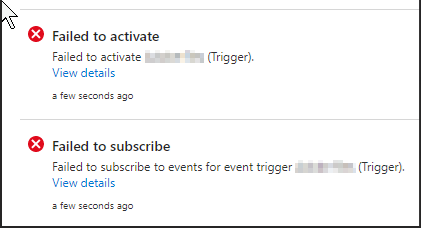
Then this popped up: 


The trigger needs to create and subscribe to an Event Grid event in order to be activated. Even the error was mysterious: 

"The client {GUID}' with object id {GUID}' does not have authorization to perform action 'Microsoft.EventGrid/eventSubscriptions/write' over scope '/subscriptions/{GUID}/resourceGroups/{resourceGroup}/providers/Microsoft.Storage/storageAccounts/{StorageAccount}/providers/Microsoft.EventGrid/eventSubscriptions/{GUID}' or the scope is invalid. If access was recently granted, please refresh your credentials."

I tried numerous searches on how to get the authorization to perform action Microsoft.EventGrid/eventSubscriptions/write and kept hitting dead ends. 

Finally, I started poking around in the Subscription settings to see if something needed to be set in there. Under "Resource Providers", I found that Microsoft.Synapse, Microsoft.Storage, Microsoft.DataLakeStore and Microsoft.EventGrid were all registered. So that felt like a dead end. 

After a bit more muddling around searching, I entered "Failed to Subscribe" in the search and found my savior: Cathrine Wilhelmsen.  She had experienced exactly the same issue and had the same difficulty I had locating information on how to resolve issue. She even mentioned the same articles that I read in my attempts to figure out what to do! The only thing I had not done was visit the Microsoft Q&A thread about running event triggers in Synapse - probably because I stumbled upon her blog post first! Thank you, Cathrine!!

So what was the magic trick?


The Microsoft.DataFactory resource provider was not registered. 

I hadn't expected that because we didn't have Azure Data Factory installed in this subscription, but now we know that it is required for event triggers.

Once the Admin registered Microsoft.DataFactory, I was able to successfully publish the storage event trigger. 😀 


Deep Dives, Best Practices, and What's Coming in Microsoft Fabric - FabCon 2026 - Part 2

  FabCon 2026 — Recap Part 2 Deep Dives, Best Practices, and What's Coming in Microsoft Fabric My notes from Fabcon sessions covering De...